Your TV has a perfectly good HDMI port but no app store, no Android, no way to install anything. The good news: you do not need to replace the television. In this guide you will learn how to convert HDMI to IP TV — that is, how to turn any HDMI-equipped TV (or even an old non-smart set) into a full IPTV machine with live channels, on-demand movies, and 4K quality. We cover three practical routes, the exact hardware to buy, a step-by-step setup for each, internet bandwidth math, and the mistakes that cause 90% of first-time failures.
What "HDMI to IP TV" Actually Means
Let's define the goal precisely, because the term gets searched in a few different ways. When people ask how to convert HDMI to IP TV, they usually mean one of three things:
- Route A — Feed an HDMI-only TV: you have a TV with spare HDMI inputs but no smart features, and you want IPTV on it. The solution is a streaming device plugged into that HDMI port.
- Route B — Convert an IPTV output to HDMI: you are running an IPTV system (hotel head-end, hobby lab, encoder box) and need its IP stream to appear on a big TV through HDMI — the opposite direction. This involves decoders, STBs, or a PC acting as a player.
- Route C — Make many TVs mirror one source: bars, gyms, hotels, break rooms — one IPTV stream that every HDMI screen in the room shows.
The same core idea powers all three: an IPTV signal travels over your network (the IP part), and an HDMI connection carries the finished picture into the screen (the TV part). The conversion happens in the device sitting between those two worlds. (New to the topic altogether? Start with our complete guide to what IPTV is before coming back here.)
Route A: The Fastest Method — Plug In a Streaming Stick (10 Minutes)
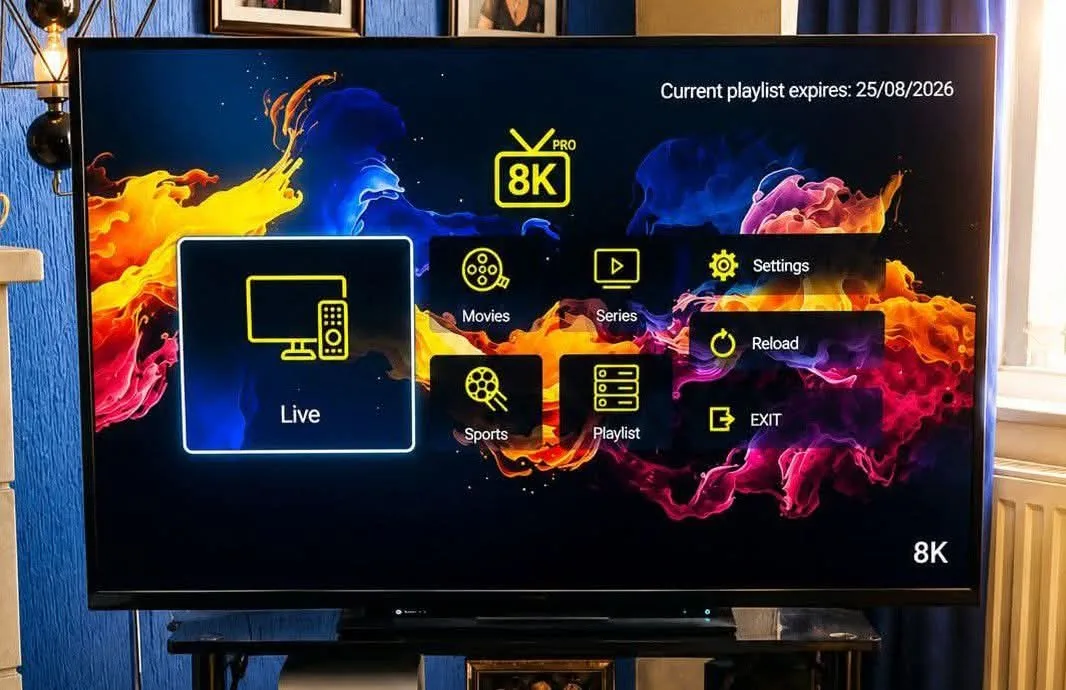
This is the route 95% of home users should take. A small Android-based stick plugs into the TV's HDMI port, connects to Wi-Fi (or Ethernet), installs an IPTV player, and streams your subscription. Nothing is soldered, nothing is configured deeply, and the TV keeps doing what it does best: displaying HDMI video.
Step 1: Confirm the TV Has an HDMI Port
Nearly every TV made after 2008 has at least one. If the port is behind the panel and inconvenient, buy a short HDMI male-to-female extension cable ($5–$8) so the stick hangs within reach for power and repairs.
Step 2: Choose the Streaming Device
There are dozens of options, but these are the ones that matter for IPTV specifically:
| Device | Price class | IPTV experience | Best for |
|---|---|---|---|
| Amazon Fire TV Stick 4K Max | $40–$60 | Excellent — Smarters Pro, TiviMate, IBO all run natively | Most homes; best price/quality |
| Amazon Fire TV Stick HD | $25–$30 | Very good for 1080p channels | Bedroom or secondary TVs |
| Xiaomi Mi TV Stick 4K / Box S 2nd Gen | $35–$70 | Good; Google TV certified | International buyers (often cheaper locally) |
| Nvidia Shield | $150+ | Best-in-class decode and charm | Home theaters and heavy VOD use |
| Any Android TV box (H96, X96, obviously updated SoC) | $30–$60 | Variable — firmware quality matters | Budget builds; check reviews for freezing |
| Apple TV 4K | $99+ (plus $10 player app) | Excellent via GSE Smart IPTV / Flix IPTV | iOS households wanting a premium wall |
For a first IPTV setup, the Fire TV Stick 4K Max remains the default recommendation: it decodes HEVC 4K well, has mature player apps, and sideloading Iptv Smarters Pro takes one command via Downloader. Never buy a device that promises "IPTV built-in, 9000 channels preloaded" — those are clone boxes with stale, dead playlists baked in and zero support.
Step 3: Install the Player
On Fire TV: install Downloader from the Amazon store, open it, and enter the Smarters Pro APK URL from your provider (best practice: get the exact URL from your provider's support — versions change). On Google TV/Mi Stick, install IPTV Smarters Pro, TiviMate, or IBO Player from Google Play directly. On Apple TV, install GSE Smart IPTV from the App Store.
Step 4: Enter Your Subscription Credentials
Your provider gives you one of two formats:
- XTream Codes / API: a server URL, username, and password. Enter them in the app's login screen — this is the best format because the app pulls the channel list, EPG guide, and VOD automatically and keeps them updated.
- M3U playlist: a single URL. Apps like TiviMate import it, but you must also paste an EPG URL separately for full schedules. Everything still works, just with one extra manual step.
Reputable providers — including Lion IPTV — hand you XTream credentials in the activation email so the smart-TV step "just works" on first login.
Step 5: Watch, Then Optimize
Open the group list, play a channel, and immediately do three checks: picture stability for one full minute, guide (EPG) population, and 4K payload on a sports source. Once it is working, wire these quality-of-life settings: set buffer size to Auto or Large in the player, disable "auto frame rate sync" if you see color flashes, connect the stick to a 5 GHz network (or use a Fire Stick Ethernet adapter for a hard-wired link), and disable animations in developer options if the UI feels heavy on older panels. Need the exact app-install walkthrough? Follow our step-by-step Smarters Pro install guide.
Pick Your Provider Before You Pick Your Device
A perfect setup on a weak provider still buffers. Lion IPTV gives any converted HDMI TV a 24-hour free trial — 44,573 live channels, 320,000+ movies & series, true 4K, up to 4 simultaneous screens. Request it on WhatsApp and we will walk you through the stick setup live.
Route B: When You Need IPTV Output *as* HDMI (Decoders and STBs)
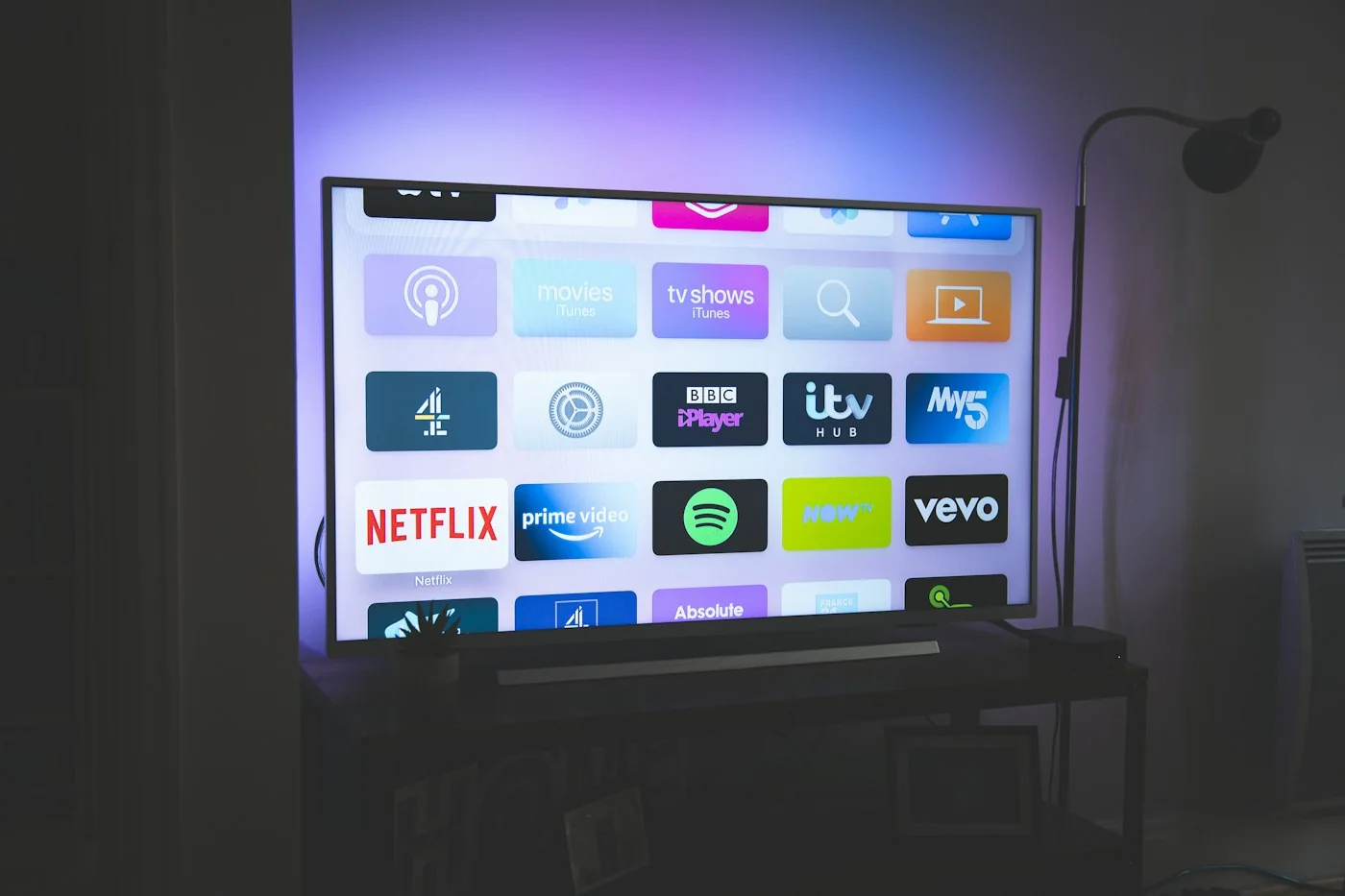
Some users travel the opposite direction: they already have an IPTV workflow — a lab stream, a hotel head-end, a camera encoder — and need its IP feed to land on an HDMI screen. This uses the mirror-image hardware: a decoder.
Option 1: An Android STB as a Cheap Decoder
The simplest "IP to HDMI" box is a normal Android TV Stick or Android box running any IPTV player tuned to your stream URL. If your stream is a plain udp://@239.x.x.x:port multicast or an http:// HLS/Live link, install VLC or MX Player Pro, open network stream, paste the URL, done. This is absolutely the cheapest decoder — $0 of added software, 10 minutes of setup, full 4K on Shield-class boxes.
Option 2: Purpose-Built IP Decoders (TBS3018, Magewell Ultra Stream, HDMI-over-IP kits)
When you need broadcast-grade reliability — no UI, boots-to-play, silent, maintained 24/7 — dedicated IP decoders exist:
- TBS.decoder boxes and similar OEM units take an IP multicast/unicast in and output SDI/HDMI out; used by cable head-ends and hospitality integrators.
- Magewell Ultra Stream / Pro Convert devices decode NDI/SRT/RTSP/HLS feeds into HDMI with near-zero latency — common for event screens, signage, and video walls.
- HDMI-over-IP extender kits (e.g., HDMI KVM extenders) are a different beast: they take an existing HDMI signal, packetize it onto the network, and re-generate HDMI elsewhere. They are a transport layer, not an IPTV decoder, but they are the tool for "one big room, every screen mirrors" scenarios where distribution across IP is easier than running long HDMI cables.
Choose a purpose-built decoder when the box must run unattended, when latency matters (sub-second), or when output needs to be locked (no UI, no error dialogs). Choose an Android box when you are simply delivering content to viewers who will navigate like normal consumers.
Option 3: A PC or Laptop as a Universal Decoder
Any computer connected to the same network can decode everything: VLC for multicast UDP, mpv or PotPlayer for HLS, OBS (as a monitor) for NDI, and browsers for web-based dashboards. Output via normal HDMI. This is the most flexible "decoder" — but for 24/7 use in a public space, keep the PC locked down (autoplay a playlist at boot, disable sleep, hide the desktop).
Route C: One IPTV Source, Many HDMI Screens (Hospitality and Bars)
Restaurants, gyms, waiting rooms, and hotels are where IPTV-over-HDMI gets genuinely engineered. There are two sane architectures:
Architecture 1: Decoder Per Screen (n × Android STBs)
Each TV gets its own mini decoder — a Fire Stick, Android box, or smart-TV app — each logged into its own connection slot of the subscription. Pros: no central failure point, easy per-screen channel changes, household-grade simplicity. Cons: you pay for one connection slot per screen (providers like Lion IPTV sell multi-connection plans exactly for this, up to 4 simultaneous screens).
Architecture 2: One Studio Box + HDMI Distribution
A single central player (a PC running the IPTV app, or a dedicated media box) renders the picture and distributes it: HDMI splitters for 2–8 TVs in one room, HDMI-over-IP extenders for buildings with network-friendly runs, or a small AV-over-IP matrix for whole-floor sync. Pros: one subscription connection, perfect synchronization across screens. Cons: all TVs show the same channel; a central-box failure blanks every screen; cabling needs planning.
A quick rule of thumb: fewer than 4 screens in one room → splitters are fine. Multiple rooms, different channel needs → architecture 1 (per-screen decoders + a multi-connection subscription) is more robust and cheaper to maintain.
Internet Bandwidth Math for Your New IPTV Setup
The HDMI side is easy; the network side is where most people under-provision. Use this table to size your connection:
| What you watch | Stream bitrate needed | Recommended home downlink |
|---|---|---|
| 720p live channels | 2–4 Mbps per stream | 10 Mbps+ |
| 1080p live channels | 5–8 Mbps per stream | 25 Mbps+ (add other-household traffic) |
| 4K live channels (HEVC) | 18–25 Mbps per stream | 50–100 Mbps total |
| 4K VOD movie | 15–30 Mbps burst | 100 Mbps total comfortable |
| 4 simultaneous 4K streams (family plan) | ~80–100 Mbps peak | 200+ Mbps ideal |
Two notes on real-world behavior: first, ISPs often sell "up to" speeds; run a wired speed test during evening prime time on the network the stick will use, not on your phone over mobile data. Second, if your Wi-Fi is stubborn, a $10 Ethernet adapter for Fire TV solves most buffering cases outright — wired beats even excellent Wi-Fi for live video.
Troubleshooting the Top 6 Failures
1. Picture freezes at prime time
Almost always server load or home Wi-Fi contention. Sequence: wire the stick (Ethernet adapter or LAN port), then check a heavy channel at 8pm on two consecutive days. If it exists with wired + strong speeds, the provider is thin at peak — premium providers invest in anti-freeze/load-balanced infrastructure precisely for this.
2. "HDCP error" or black screen on HDMI
Copy-protection negotiation failing between stick and TV. Fixes: use the native HDMI input (not through a receiver or splitter first), power-cycle both, try a shorter/different HDMI cable. It is never an IPTV app issue — it's a hardware handshake.
3. EPG guide shows "No Information"
You logged in with M3U but never imported the EPG source. Get the XMLTV guide URL from your provider and paste it in the player's EPG settings (TiviMate: Settings → EPG → Add source; Smarters does this automatically with the XTream login).
4. Stick reboots itself during 4K
Undersized power supply or overheating chip. Use the original adapter (the stick draws more than TV USB ports can give on 4K Max), and avoid enclosing the device in the TV's back-panel vent void if possible — a small HDMI extension solves heat and access in one move.
5. Channels load, video is green/pixelated
The stick's decoder cannot handle HEVC 10-bit. Older HD-only sticks and cheap off-brand boxes do this. On TiviMate you can force software decode as a workaround (slower CPU, higher heat), but the real fix is a 4K-capable device.
6. Works on the TV next to the router, freezes upstairs
Wi-Fi coverage, not the service. Mesh nodes dead zones, 2.4 GHz congestion, brick walls. Test: run the same channel on a phone at the problem TV location — if it buffers there too, Wi-Fi is the culprit. A Powerline adapter or moving the mesh node closer fixes it without touching the IPTV setup.

Cost Breakdown: What Converting HDMI To IP TV Actually Costs
Budget honestly — hidden costs tend to be tiny, and the payback versus cable is still dramatic:
- Streaming stick: $25–$60 one-time (Fire TV Stick 4K Max is the sweet spot).
- HDMI extension cable: $5–$8, optional but recommended.
- Ethernet adapter: $10, optional — worth it if Wi-Fi is weak.
- IPTV player app: free (Smarters Pro) or ~$8 one-time (TiviMate on Android reportedly still sells lifetime licenses; IBO Player charges a small activation fee per device).
- Subscription: $10–$20 per month depending on connections and duration; trial-based providers let you validate before paying.
First-year total for a single-TV home on the premium end: roughly $170–$290. A comparable cable bundle runs $720–$1,440 per year. The conversion pays for itself in about six weeks.
Frequently Asked Questions
Can I convert HDMI to IPTV without buying a device?
Only if your TV itself is a smart TV with an app store — then no external device is needed at all (install the player app directly). For genuinely non-smart TVs without Android/webOS/Tizen, some device must do the decoding; there is no way to make a dumb HDMI port run IPTV by itself.
Will IPTV work over a TV's built-in Wi-Fi or should I wire it?
Use built-in Wi-Fi as a starting point, but prefer wired Ethernet for live sports and 4K. Even a perfect wireless network spikes during microwave use or neighbor-channel congestion; wired eliminates that class of failure entirely.
Does converting HDMI to IP TV degrade picture quality?
No — the streaming stick decodes the stream and outputs native HDMI at the stream's resolution. Picture quality is defined by the source bitrate and your TV's panel, not by the stick. In fact, a well-fed IPTV 4K feed often looks better than what a cable box delivers, because cable operators compress more aggressively.
Can I use one subscription on two different TVs?
Yes, if your plan supports multiple simultaneous connections. Providers sell 1, 2, 3, or 4-connection plans. Lion IPTV offers up to 4 simultaneous screens so a living room, bedroom, and two tablets can all stream at once under one bill.
Do I need a VPN with a converted TV?
Not generally. A VPN helps if your ISP throttles video traffic or you want an added privacy layer, but it adds latency to live TV. If you do use one, choose a VPN server geographically close to you, and re-test peak-time buffering both with and without it.
Is this setup allowed legally?
The technology — a device decoding IP video into HDMI — is neutral and legal everywhere; decoders, Android boxes, and streaming sticks are ordinary consumer hardware. The legality question sits with the content source: subscribing to unlicensed redistributors is what creates risk in most jurisdictions. Choose providers with transparent licensing posture, real support channels, and a documented refund policy.
What about HDMI-to-composite for really old TVs?
Possible but capped at 480p: an HDMI-to-RCA adapter ($10) decodes down to composite. Acceptable as a stopgap for a garage or kitchen CRT-era set, but for anything you actually watch, a $25 Fire TV Stick into the HDMI port is far better value than fighting around an adapter.
The 15-Minute Checklist (Print This)
- Confirm the TV has an HDMI port; buy an extension cable if access is awkward.
- Buy a streaming stick (Fire TV Stick 4K Max recommended).
- Subscribe (or start a free trial) with a provider; save your XTream credentials.
- Install the player (Downloader + APK on Fire TV; Play Store elsewhere).
- Log in, verify channels, verify EPG, test one 4K source and one sports source.
- Optimize: Ethernet or 5 GHz, buffer to auto/large, disable heavy animations.
- Set up additional rooms with their own sticks under a multi-connection plan.
Ready to Watch on Any HDMI TV Tonight?
Lion IPTV includes a 24-hour free trial — 44,573 live channels, 320,000+ movies & series, true 4K on Fire TV, Apple TV, Android boxes, and every HDMI TV via a streaming stick. Test it on the same setup described in this guide before you pay anything.